

 Sahil Aggarwal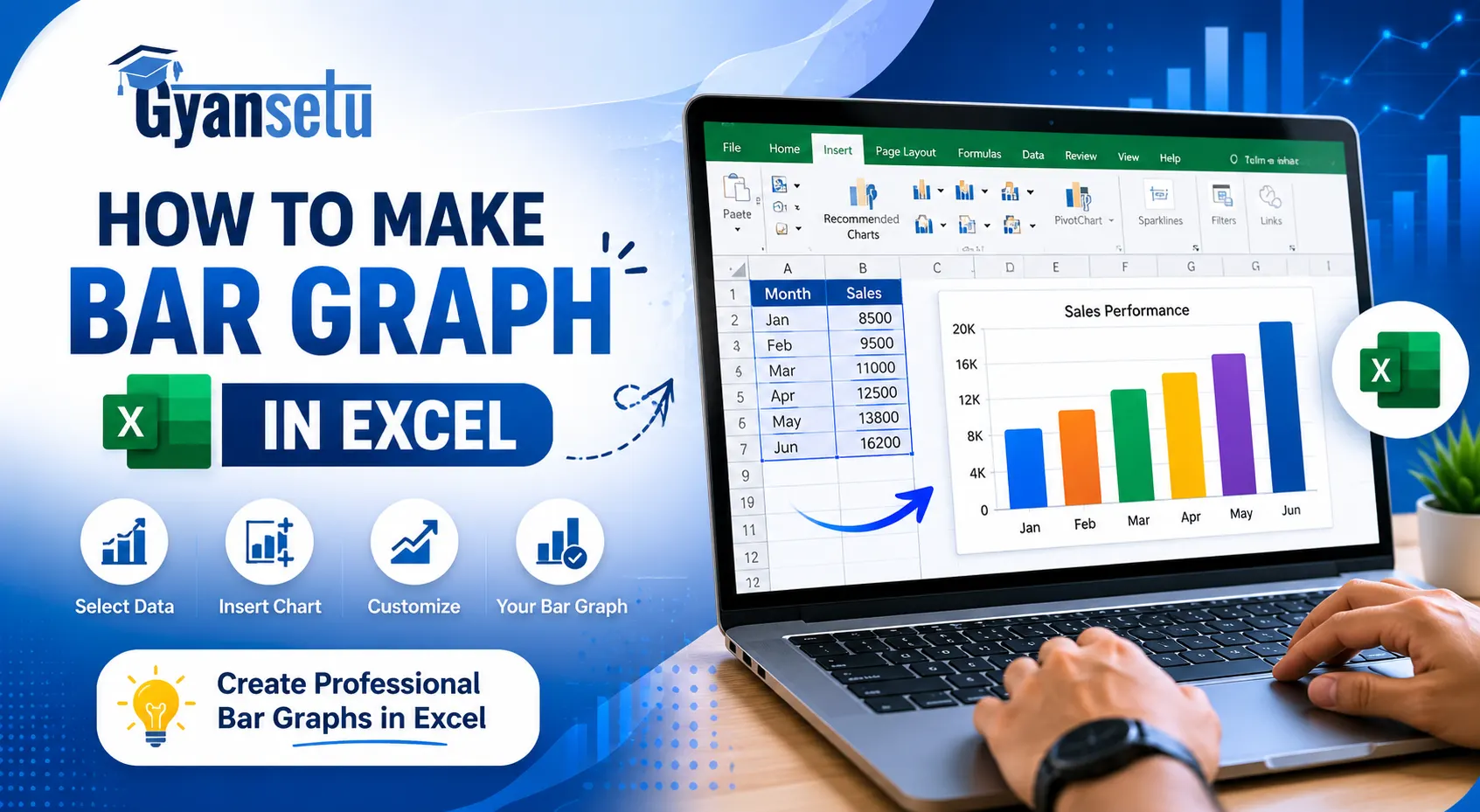
In order to make the data visual and easy to present, the basic knowledge is to construct a bar graph in Excel. The bar graph simplifies complex data to understand whenever you want to summarize the survey findings, compare products sales or trends. This blog will help you how to make a bar graph in excel efficiently. Within minutes you’ll be able to convert raw numbers into an easy-to understand visual format.
How To Create a Bar Graph in Excel
In order to create a bar graph in excel, choose your data range, on the menu bar pressed on the insert tab, and there, you are supposed to select the icon of a bar chart and then you are supposed to select the type of a chart. Individualize axes, labels and colors respectively to suit your presentation objectives.
Data preparation
To make your bar graphs in excel correct and readable it is important to properly organize your data:
- Adopt a definite tabular structure with labels on the left column and values in the other columns.
- Do not leave blank rows or merge cells so that excel might not misinterpret the data range.
- Make sure to add the individual data column headers in order to label the chart correctly.
- Eliminate special characters or additional spaces that can disrupt the creation of the chart.
- Standardize numbers (e.g. currency, percentage), throughout the dataset.
Inserting a basic bar graph
Follow these steps to insert a standard bar graph in Excel quickly and accurately:
- Select your data, including both category labels and numerical values.
- Go to the “Insert” tab on the Excel ribbon.
- Click the “Insert Column or Bar Chart” icon in the Charts group.
- Under 2-D Bar, choose “Clustered Bar” for a simple horizontal bar chart.
- Excel will generate the chart instantly in your worksheet.
- Drag or resize the chart as needed for better placement.

Configuring data series
In order to configure data series in excel, right-click on the chart and then select a series of data by selecting the command Select Data to open the Select Data Source dialog box. In this case, you may add, edit or delete data series to modify what is displayed in the graph.
- Press the button “Add” to add a new series and specify its name and values.
- Edit to edit an existing series.
- Click on remove and remove unwanted series in the chart.
This correct configuration guarantees that your bar graph is a good representation of the various categories or datasets, e.g. year-to-year comparisons or lines of different products.
Step 1: Create a clustered column chart
To begin the charting process start it by creating a basic clustered column chart in Excel:
- Select your data range which includes your category labels and values.
- Navigate to the “Insert” tab on the Excel ribbon. In the charts group, click on “Insert column or bar chart”.
- Select “Clustered column” under 2-D column.
- Now, you’ll see that Excel generates a vertical bar chart that is represented on the basis of your selected data.

Step 2: Open the Select Data Source dialog
Use the Select Data Source dialog to manage and modify your chart’s data series:
- Right-click on the chart area and select “Select Data” from the context menu.
- The Select Data Source dialog box will open, showing the current data range and series.
- This tool allows you to add, remove, or edit data series and switch row/column orientation.

Step 3: Add a new data series
Adding a new data series allows you to display additional data in the same bar chart for comparison:
- Open the Select Data Source dialog by right-clicking the chart and selecting “Select Data.”
- Click the “Add” button under the Legend Entries (Series) section.
- In the Edit Series window, enter a name for the new series.
- Select the corresponding values for the series data (Y-values only).
- Click OK to apply changes and add the new series to your chart.
Step 4: Edit or remove a series
You can also edit or delete a series of data to make your bar chart more refined and easy to understand:
- Click on the chart using the right hand side and then right-click on the chart and choose Select Data and the Select Data Source is opened.
- In order to edit a series, one should have to click on the series name in the Legend Entries (Series) then choose to edit. Upgrade the series name or range of values.
- In order to delete a series, you need to choose one and press on the remove button. The chart will automatically change to reflect the changes.
Step 5: Adjust bar spacing and layout
The mobility of the distance between bars and the balance of the chart is improved by modifying the distance between bars and layout:
- By clicking on any bar on the chart, it is possible to choose the whole data series.
- Right-click, and select Format Data Series.
- Within Series Options, the Gap Width slider allows you to adjust how much there is between bars (e.g. 0% to no gap, 150% to wider gap).
- Adjust Series Overlap in case there are several series in case of having to regulate the grouping of the bars.
- The Chart Elements change the layout components such as data labels, titles, and legends using the + icon.

Viewing and selecting bar chart types
Excel offers multiple bar chart styles to suit different data visualization needs. Choosing the right chart type ensures your data is clearly presented and easy to interpret.
Step 1: Open the full chart menu
In order to have the entire range of styles of bar charts available in excel, it is best to access the full chart menu:
- Click on the ribbon under the tab of Insert.
- Click the dropdown Charts group in the insert column or bar chart.
- Click on More Column Charts or More Bar Charts to bring out the entire chart type dialog box.
- All 2-D, 3-D, clustered, stacked and 100 percent stacked charts are available in this menu.
Step 2: Review bar chart options
There are different types of bar charts in Excel that are made for comparing different kinds of data:
- Clustered Bar: These charts show people next to each other in different categories.
- Stacked Bar: This shows the total of all the series, with segments showing parts.
- 100% Stacked Bar: In this type of bar chart, each category is shown as 100%, and the bar segments show how much each category contributes.
- 3-D Bar: This adds depth to the picture, but it isn’t the best for accurate analysis.
Step 3: Choose a Layout That Fits Your Goal
The choice of the appropriate layout assists in highlighting the connections in your data:
- Select Clustered Bar in cases where the values are to be compared within more than a single category.
- Stacked Bar Use with Cumulative totals and still divide category parts.
- Choose 100% Stacked Bar to see the percentage contributions to the categories.
- The data labels, axis titles or legends are to be considered to facilitate interpretation.
- Align your layout to the message that you desire your data to convey.
Step 4: Switch Between Horizontal and Vertical Formats
To make the readability higher depending on the nature of the data and the length of the label, it is useful to reverse it:
- Select your chart, and others open the Chart Design tab.
- Click Change Chart Type and alternate between a Bar (horizontal) and a Column (vertical) chart.
- Horizontal when there are long labels, lots of categories; vertical when there is a chronology.
Advanced Customization Techniques
Axis and Label Formatting
Clear axis and label formatting enhances data readability and precision:
- Right-click on the axis and choose “Format Axis” to adjust range, tick marks, and number format.
- To add or customize axis titles and data labels use “Chart Elements”.
- To maintain visual clarity apply consistent font sizes.
Conditional Formatting and Special Effects
Highlighting with “Invert if Negative”
This option helps distinguish negative values in your chart:
- Select the data series, right-click, and choose “Format Data Series.”
- Under Fill & Line, enable “Invert if negative” and set contrasting colors.
Gradient Fills and Conditional Colors
To reflect value changes across bars use color variations:
- Right-click on a bar and choose “Format Data Point”.
- In the fill section, select Gradient fill or you can also apply conditional coloring via formulas or VBA.
Use color variations to reflect value changes across bars:
- Right-click on a bar and choose “Format Data Point.”
- In the Fill section, select Gradient fill or apply conditional coloring via formulas or VBA.
Highlight a Specific Bar
Emphasize key data points for better focus:
- Click once to select the series, then click again on the specific bar.
- Right-click and apply a distinct color or effect using “Format Data Point.”
Visual Effects
To make your chart more professional add subtle enhancement. To this you can use:
- Use the “Format” → Shape Effects options to add shadows, soft edges or bevels.
- To maintain the clarity of data avoid excessive styling.
Making Charts Dynamic and Accessible
Link Chart Titles to Cells
Automatically update chart titles based on worksheet values:
- Click the chart title, then in the formula bar, type =SheetName!CellReference.
- Press Enter to bind the chart title to the cell content.
Use Dynamic Ranges
It is quite necessary to keep your chart updated as data grows or shrinks:
- Using the OFFSET and COUNTA functions define a named range.
- Assign this range to your chart’s data series via “Select Data”.
Improve Accessibility
Make your chart readable for all users, including those with disabilities:
- Use high-contrast colors and avoid red-green combinations.
- Add Alt Text by right-clicking the chart and selecting “Edit Alt Text.”
- To use less color, add data labels next to visual elements.
Examples of Excel Bar Graph Types
Horizontal Bar Graph
The Y-axis shows categories and the X-axis shows values in a horizontal bar graph. It is best for comparing a lot of categories or when the names of the categories are long (like when you want to see how well a department is doing across branches).
Vertical Bar Graph
The vertical bar graph (also called a column chart) has categories on the X-axis and values on the Y-axis.Good for showing changes or trends over time, like monthly sales or quarterly growth.
Stacked Bar Graph
Shows parts of a whole by combining several series into one bar for each category.Good for showing data that is broken down into parts, like expenses by department over time.
Troubleshooting Common Issues
Here are some of the most common troubleshooting issues and solutions to those which you may face while working on Excel:
Data Not Showing
If your data is not showing, always ensure that the data range is accurate and contain no blank cells. Always recheck the data range in the Select data source dialog and remove merged or hidden rows that may block visibility.
Visual Glitches
Sometimes, charts may appear poorly formatted or misaligned. To fix these you can reset the chart styles or recreate the chart to resolve display issues. Always use “Reset to Match Style” under the chart design tab.
Performance Issues
Complex formatting or large datasets can slow chart rendering. To fix these you can do the following:
- Use Excel tables and limit the number of displayed series.
- For smoother performance during editing switch to manual calculation mode.
Conclusion
The steps involved in how to make a bar chart in excel are numerous since it requires the organized preparation of data, the correct choice of a chart type and reasonable formatting. Excel offers powerful data storytelling tools. The ability to customize charts to your needs and make them accessible to you is enabling you to produce powerful and professional visualization.
FAQs
What Is A Bar Graph In Excel?
Bar graph is a visual representation of data using rectangular bars to show values of different categories. These bars can be horizontal or vertical.
What Is The Difference Between A Bar Chart And A Column Chart?
Both the charts represent the same type of data but they are oriented differently. The bar chart represents horizontal bars while the column chart represents vertical bars.
How can I update the chart if my data changes?
If your chart is linked to the original data range then the chart will automatically update when you edit the numbers.
What Data is Best For Bar Graphs?
A bar graph is used to represent nominal and categorical data, which means the data which can be divided into different categories or groups.
What Are The 5 Types of Bar Graphs?
The five main types of bar graphs are vertical bar graphs, horizontal bar graphs, stacked bar graphs, 100% stacked bar graphs, clustered bar graphs.
Continue Your Reading →


