

 Sahil Aggarwal
Blank cells in Excel might look harmless but they can create many issues. They make your data look messy, affect formulas and sometimes even make your file larger than it should be. If you are preparing data these empty cells can slow down your work.
Luckily, Excel has many simple ways to remove blank cells and keep your worksheet clean. In this blog, we will learn step-by-step methods to delete blank cells, when you should avoid deleting them and how to remove blank cells in Excel beyond data
How to Remove Blank Cells in Excel?
Deleting blank cells is a straightforward process. If you follow the right steps, you can make your sheet look clean in just a few minutes.
Step 1: Select the Data Range
Select the range of the worksheet where you want to remove blanks. The selected part can have a single, multiple column or entire worksheet.
Step 2: Use Go To Special
To use Go To Special you need to follow the following steps:
- Press Ctrl + G or F5. This will open up a dialog box.
- Click on Special and select Blanks and Press Ok.


As a result, you will see that all the blank cells in your selected range will now be highlighted.

Step 3: Delete the Blank Cells
- To delete the blank cells go to the Home tab on the ribbon. In the Cells group, click on Delete, and then choose Delete Cells.
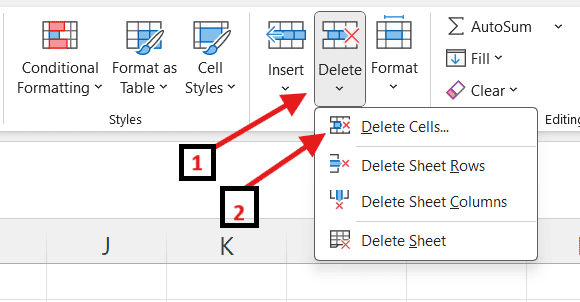
Step 4: Choose How to Shift Data
After following the above step, a dialog box will appear which will provide two main options as follows:
- Shift cells up – This option will move the data below upward.
- Shift cells left – This will move the data on right to the left.
Choose the option that works best for your data. For a single column, “Shift cells up” is usually the best choice.

Step 5: Check Your Worksheet
After deleting, check your worksheet carefully. Make sure that the data is still in the right place. If you find something wrong, you can press Ctrl + Z to undo everything.
How to Delete Empty Cells After the Last Cell with Data
Sometimes, you might see that Excel shows extra rows or columns even after your actual data ends. These empty areas increase the file size and may confuse Excel while calculating ranges. To clear these you need to follow these steps:
Step 1: Find the Last Cell with Data
Press Ctrl + End. Using this excel will take you to the last cell it considers part of the worksheet. If this cell is far below or to the right of your actual data which means that Excel storing is unused rows or columns.
Step 2: Select Extra Rows and Columns
Click the first empty row below your data. Drag down to the very end of the worksheet to select all extra rows. Do the same for extra columns to the right of your data.
Step 3: Delete Them
Right-click on the highlighted rows or columns and select Delete. This will remove everything beyond your active data range.
Step 4: Save the File
Save the workbook. Saving is important because it resets Excel’s memory of the used range.
Step 5: Check Again
Press Ctrl + End once more. This time, Excel should take you to the real last cell of your dataset.
When Not to Remove Empty Cells by Selecting Blanks
While this method is very useful, there are times when deleting blank cells is not a good idea. Let’s look at those situations.
1. Delete Blank Rows and Columns Instead of Cells
If you see that an entire row or column is empty in your excel sheet then it’s better to delete the whole row or column rather than removing single blank cells. Deleting only cells can shift your data and cause mismatches between rows. Deleting whole rows or columns will help you to keep your data aligned and organized.
2. Does Not Work for Excel Tables
While working with structured Excel tables, deleting blank cells directly can damage the format of the table. In such cases,it’s better to use a filter. Use a filter to show only rows and then delete those rows. In this way, the table structure will remain untouched.
3. May Damage Formulas and Named Ranges
Deleting blank cells might affect formulas, charts and named ranges. For example, a VLOOKUP or SUM formula might stop working properly due to shift in range. While deleting cells, be careful if your worksheet contains important formulas.
Conclusion
Blank cells in Excel look like simple gaps but they can cause many problems in calculations, formatting and file specialisation. The Go To Special is considered as the easiest way to find and delete blank cells. However, you need to be careful in some cases. Instead of removing individual cells , it is better to remove the entire cell or column. Always make sure to clear the extra rows and columns beyond your last cell with data. This will keep your Excel file light, accurate and easy to use.


