

 Gyansetu Team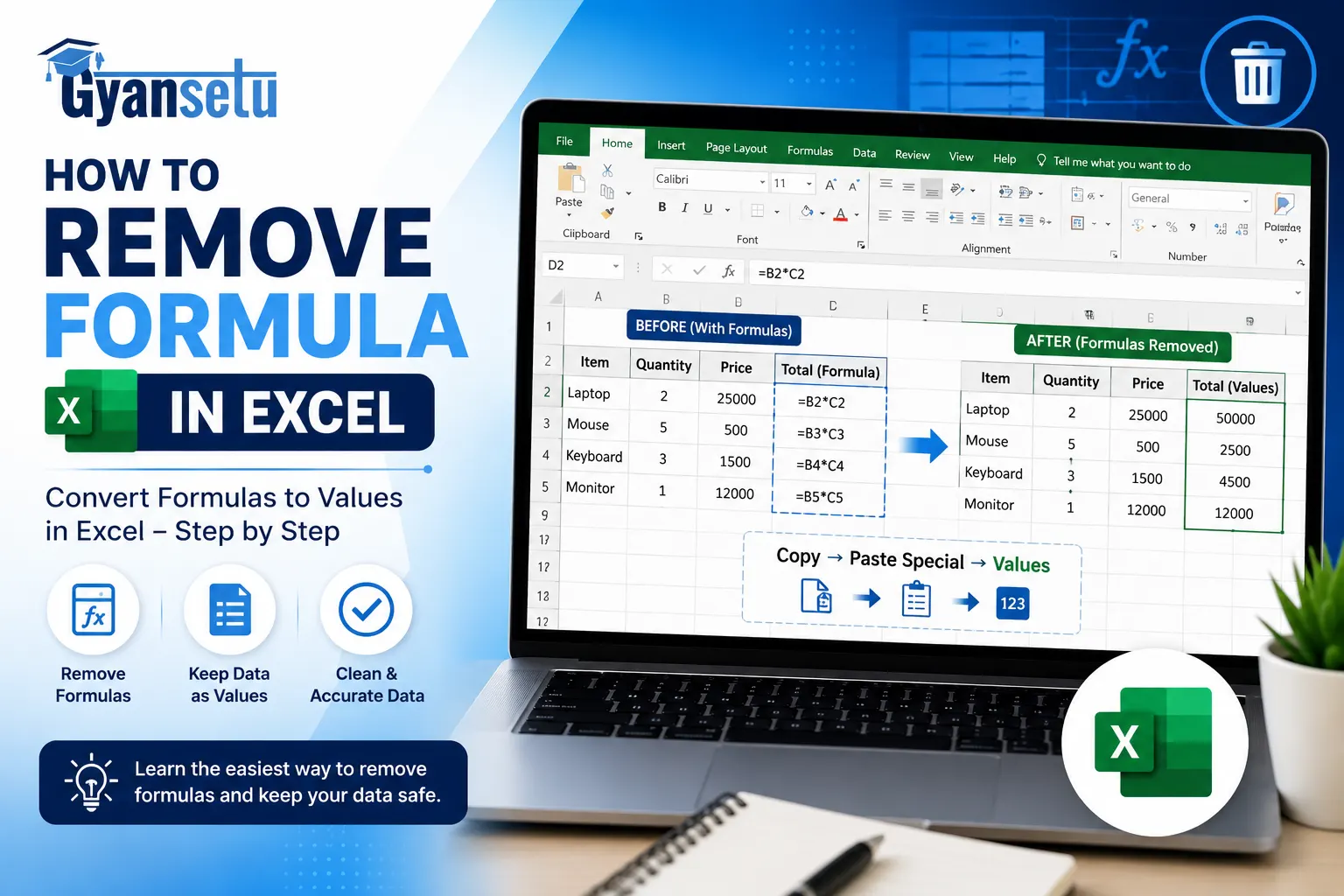
Excel is considered as a powerful tool for calculations, data analysis and reporting. But sometimes you don’t need longer dynamic formulas, you just want to keep the final values. How to remove formula in Excel is an essential skill whether you’re sharing any file, cleaning up reports or preparing data for export.
This blog will take you in depth of different ways to remove formulas from Excel sheets while keeping the data impact. Let’s study more!
What are Formulas in Excel?
In Excel, formulas are equations that perform calculations using values in your spreadsheet. A formula might add numbers, look up data from another table, or calculate percentages. For example:
=SUM(A1:A5)=VLOOKUP(B2, Sheet2!A1:C10, 2, FALSE)=A1+B1These formulas are dynamic — meaning they automatically update when the data in the referenced cells changes. While this is useful for real-time calculations, it’s not always desirable in final outputs.
Why might you want to Remove them?
There are many situations where you’d want to remove formulas from Excel sheets. The reason for this can be to freeze the final value, to simplify the sheet, to protect data, to prepare for export/import, to reduce the file size. These can be some of the common reasons due to which you might need to remove formulas.
How to Remove Formula in Excel Sheet?
It is a very straightforward task to remove formulas from your Excel sheet and keep just the values. Here are two of the most common methods that one can use:
Method 1: Copy and Paste Values
This is one of the quickest and easiest ways to remove formulas while keeping the results intact.
- First you need to select the cells which contain formulas that you wish to remove.
- After selecting, copy them using Ctrl + C.
- Now, right click on the selected formula or a new location where you want the values.
- Now go to the paste options and click Paste Values.
Result:
With the help of these steps the formula will get replaced by their current values. To understand this better let’s get into an example, if a cell has formula A1 + B1 showing 100, it will now simply show the value 100 without any underlying formula.
Method 2: Using Paste Special
Paste Special provides more control and allows you to paste only the values without affecting cell attributes like formatting.
- Select the cells that contain formulas.
- To copy Press Ctrl + C
- Right-click the destination cell or the same cells.
- Select Paste Special from the context menu.
- Choose Values from the paste special dialog box.
- Click OK

This method is best suited when you want to retain cell formatting or paste values into a different part of your workbook.
Step-by-Step Instructions: Remove Formula in Excel Sheet
Let’s understand this better with the help of an example. For example, cell C2 has a formula = A2 + B2 and the calculated value is 150.
Here are steps for how to remove formula in Excel and keep the value:
- Click on cell C2 to select it.
- To copy the cell press Ctrl + C
- Right click on the location you want to paste
- Click Paste Values (or use Paste Special > Values)
- The formula = A2 + B2 is now replaced by the value 150.
How to Remove VLOOKUP Formula in Excel?
VLOOKUP is one of the most popular functions in Excel used to fetch data from another table. However, once you have the lookup results, you might want to remove the formula to keep only the values. Here are simple steps to do this without any stress:
Specific Steps for VLOOKUP
For example, you have a VLOOKUP formula like given below in column D:
= VLOOKUP (B2, Sheet2! A1:C100, 2, FALSE)To remove the formula but to keep the values:
- Select the cells which contain the VLOOKUP formula.
- To copy that press Ctrl + C
- Right – click on the same selection
- Choose Paste Special → Values.
- Click Ok.

Now, you will see that your VLOOKUP formulas are replaced by their static results.
Troubleshooting Common Issues
| Issue | Solution |
|---|---|
| When VLOOKUP results show #N/A | Make sure that lookup values exist and all the references are correct. |
| When values disappear after pasting | Make sure that you use Paste Special > Values not only paste. |
| When formatting get lost after pasting | Use Paste Special → Values and Number formats to keep formats. |
Tips and Tricks
- To remove the formulas but to retain color and style of cell use Paste Special → Values and Number Formats.
- To convert formulas across multiple sheets, copy formulas from one sheet and paste them in another to quickly freeze results with the help of Paste Special.
- Always double check the references if your Excel sheet contains any external workbook.
Excel Formula to Value Shortcut
If you want to quickly convert formulas to values without navigating menus, use keyboard shortcuts:
For Windows:
- Select the formula cells.
- Press Ctrl + C to copy.
- Press Ctrl + Alt + V to open the Paste Special dialog.
- Press V for values.
- Hit Enter.
For Mac:
- Select the formula cells.
- Press Command + C.
- Press Command + Control + V.
- Press V and then Return.
This shortcut saves time, especially when dealing with large datasets.
Conclusion
To create static, reliable sets that won’t change unexpectedly, removing formulas is essential, especially VLOOKUP. Whether you’re preparing reports or sharing files, converting formulas to values helps to avoid errors and protect your data.


