

 Gyansetu Team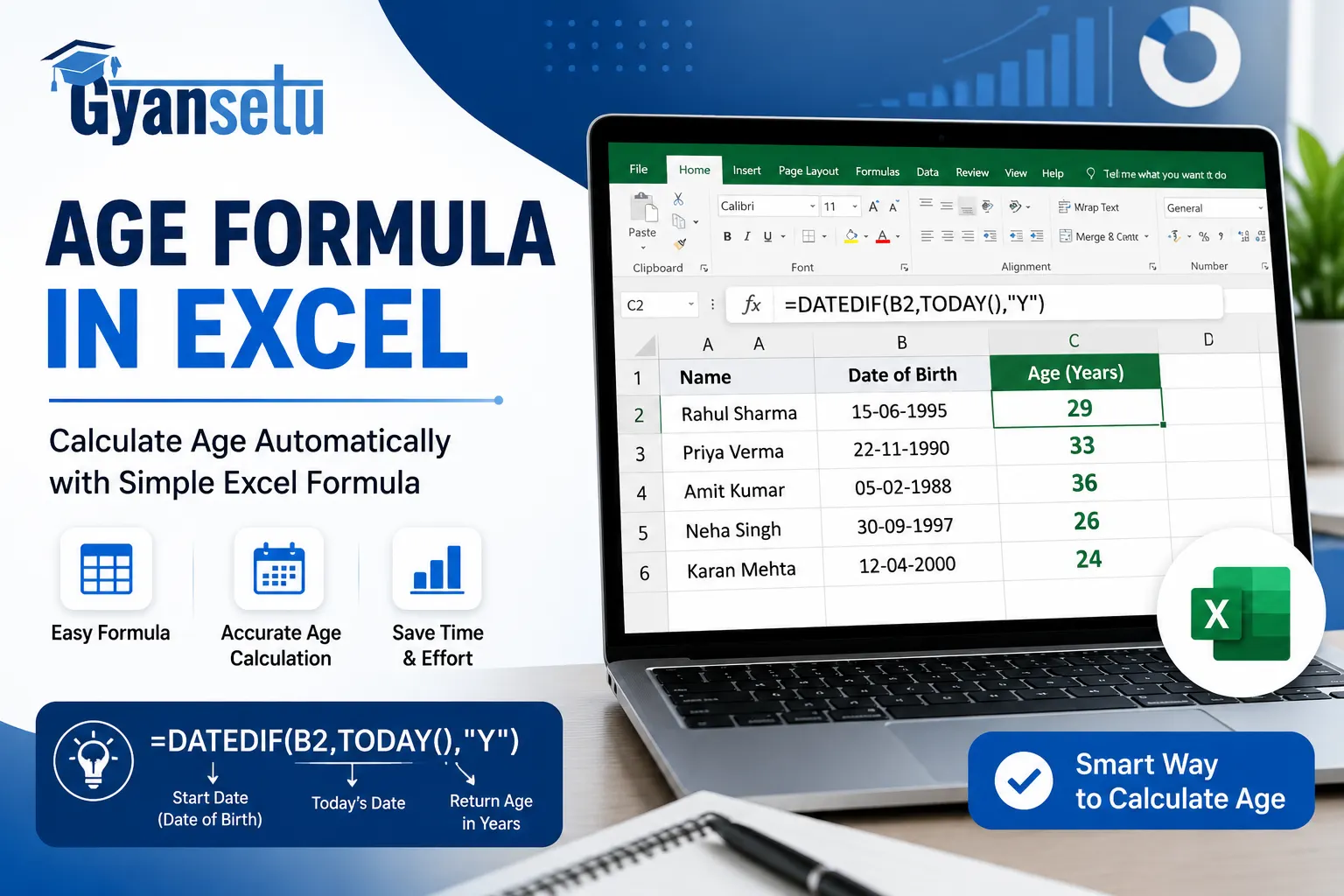
A very common requirement across industries such as healthcare, education and HR is to calculate age accurately. Learning how to calculate an age in Excel helps to automate this process efficiently using built-in date functions.
Whether you need to calculate current age, future age or track threshold, Excel offers you flexible tools to perform these tasks. This blog will help you to cover how to calculate age in Excel using reliable methods.
How to Calculate Age in Excel
Are you wondering how to calculate the aging days in Excel? To do this you can use
= DATEDIF(birthdate, TODAY(), “Y”) or = INT(YEARFRAC(birthdate, TODAY( ) ) )Both of these formulas return the full numbers of years between the birthdate and today.
Basic Age Formula in Excel
If you want to understand how to calculate age from date of birth in Excel, you can learn with a simple formula which divides the difference between today’s date and the birthdate by 365.25:

Formula: = INT( (TODAY ( ) - A2 ) / 365.25)This formula will return an approximate age in years, using 365.25 to account for leap years. This formula is basic and suitable for general use but it lacks day-level precision.
Accurate Age Calculation Methods
To be accurate when finding age in excel, it is best to use inbuilt date functions which take into consideration leap years, full months and exact days. These are the methods to answer a question that can be found frequently: how do I calculate aging in Excel in the most accurate and dynamic ways.
USING INT() AND YEARFRAC() FOR BETTER ACCURACY
To calculate age with precise decimals and then round it down, use the YEARFRAC( ) function combined with INT( ). This formula will return the age in whole years between the date of birth and today. This function is more accurate than dividing 365.25.
Formula: = INT(YEARFRAC( A2, TODAY( ) ) )
USING DATEDIF() FOR EXACT AGE
It is one of the most reliable functions when users ask how do I calculate aging in Excel by years only. So the answer to this is DATEDIF( ) function.
Formula: =DATEDIF(A2, TODAY(), "Y")
USING MULTIPLE DATEDIF() FUNCTIONS
To show age in years, months, and days, combine several DATEDIF() functions:
=DATEDIF(A2, TODAY(), "Y") & " yrs, " & DATEDIF(A2, TODAY(), "YM") & " mos, " & DATEDIF(A2, TODAY(), "MD") & " days"
This formula provides a more detailed format. It is useful in legal, medical or academic reporting where exact age is required.
Special Use Cases For Age Calculation
In practical cases, calculating age can be based on a particular date, a goal year or finding out when a particular age is attained. These illustrations indicate how to calculate age in excel in dd mm yyyy format or to project into the future using precise formulas.
Calculating AGE ON A SPECIFIC DATE
This method is best suited for fixed reporting dates such as application deadlines or evaluation periods. To calculate age as of a specific date (e.g., 01/01/2030), use:
=DATEDIF(A2, B2, "Y")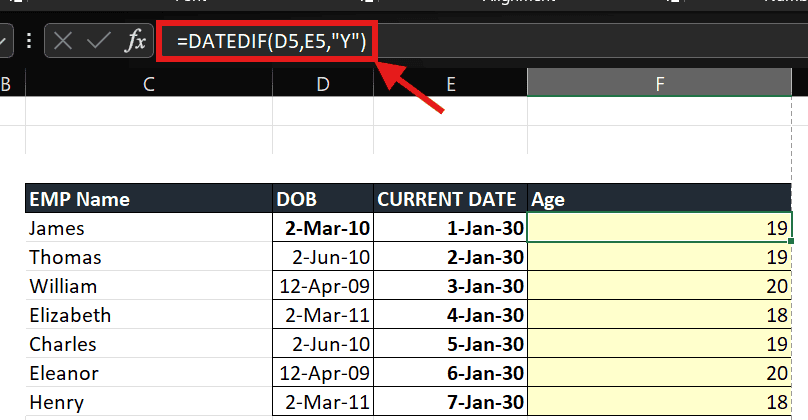
In this formula A2 contains the date of birth in dd/mm/yyyy format and B2 is the target date.
CALCULATING AGE IN A CERTAIN YEAR
This formula allows you to project age into any future year, supporting planning tasks such as retirement eligibility or academic enrollment cutoffs.To find age at the end of a specific year (e.g., 31-Dec-2040), use:
=DATEDIF(A2, DATE(2040,12,31), "Y")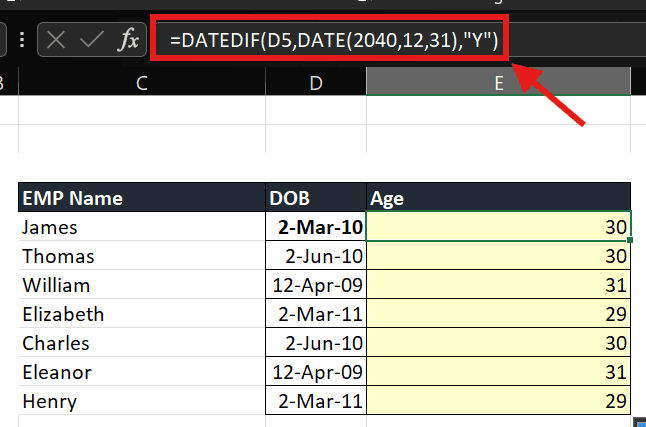
FINDING THE DATE WHEN A PERSON REACHES A CERTAIN AGE
To find the exact date someone turns a specific age (e.g., 65), apply:
=DATE(YEAR(A2) + 65, MONTH(A2), DAY(A2))
This method is quite useful for forecasting birthdays or age-based benefits. This formula accepts dd/mm/yy input format and outputs the future date.
HIGHLIGHTING AGES BASED ON AGE THRESHOLDS
When analyzing age data in Excel, applying conditional formatting helps quickly identify age groups. These rules use Excel formulas to visually categorize records based on age limits. This section covers how to calculate age by date of birth in Excel and how to apply logic to highlight age groups or calculate the aging days in Excel.
HIGHLIGHT UNDER 18
To highlight individuals younger than 18, use this conditional formatting formula. This will evaluate age based on the birthdate cell in A2. It is a quick way to visually separate minors when you calculate age by date of birth in schools, forms or eligibility filters.
Formula: =DATEDIF(A2, TODAY(), "Y") < 18

HIGHLIGHT BETWEEN 18 AND 65
To identify adults between age 18 – 65 years old, use:
=AND(DATEDIF(A2, TODAY(), "Y") >= 18, DATEDIF(A2, TODAY(), "Y") <= 65)
This is a conditional formula which helps to isolate working age individuals in large datasets. This supports reporting for workforce analysis, insurance or healthcare systems where age range matters.
HIGHLIGHT OVER 65
To highlight seniors over 65: =DATEDIF(A2, TODAY(), “Y”) > 65. This formula is quite useful in healthcare or benefits management.

If you also want to calculate the aging days in Excel, use:=TODAY() – A2. This formula will return total days since the birthdate so it is useful for tracking aging in days for precision-driven environments.

KEY POINTS TO REMEMBER
- DATEDIF is a good tool to use when one wants to compute full years, months, or days between dates.
- YEARFRAC( ) and INT( ) provide a more precise alternative, especially in aging reports.
- To ensure that formulas are correct it is important to input the date om valid format such as dd/mm/yyyy.
- To avoid calculation errors make sure that the date cells are properly formatted and not stored in text format.
CONCLUSION
Excel has a number of formulas, such as DATEDIF( ) and YEARFRAC( ), that let you accurately and flexibly figure out someone’s age from their date of birth. Excel handles all situations well, whether you need age in simple years or updates that change over time. If you know how to figure out someone’s age in Excel, you can make data analysis easier in many fields.
These formulas are easy to understand when practiced hands-on. If you want to move beyond self-learning, check out Gyansetu instructor-led Advanced Excel Training in Gurgaon, Advanced excel course in delhi, Advanced excel course in Faridabad or Advanced excel course in Noida— where real projects make concepts stick
FAQs
Q1. Why Doesn’t Excel Have A Dedicated function TO CALCULATE AGE?
Ans: This is because the way we calculate age depends on factors like format and situation. So, flexible offers flexible functions that users can change according to their preference.
Q2. MY AGE CALCULATIONS ARE SHOWING AS TEXT OR WRONG VALUES. WHAT’S GOING ON?
Ans: This usually happens when the date is saved as text or the cell format is wrong. Make sure that the birthdates are in the right format and not in quotes or imported as plain text.
Q3. DO EXCEL’S FORMULAS ARE CALCULATING AGE WORK CORRECTLY FOR BIRTHDAYS THAT FALL ON FEBRUARY 29?
Ans: Yes, Excel gets birthdays on February 29 right. If this year is not a leap year, Excel will use February 28 or March 1 as the default date for age calculations, depending on the method used.
Q4. CAN I MAKE AGE CALCULATIONS THAT CHANGE ON THEIR OWN?
Ans: You can use the formula TODAY( ) to make dynamic age calculations that update on their own.
Q5. HOW DO EXCEL’S AGE CALCULATIONS HANDLE DIFFERENT INTERNATIONAL DATE FORMATS?
Ans: Excel’s age calculations handle different international date formats as it reads date on the basis of the system’s regional settings.


